
Hekima eLearning Student Manual
Getting Started
What is Hekima eLearning?
The Hekima University College eLearning portal is your digital gateway to academic success. It provides an integrated environment where you can:
- Access interactive learning modules and lecture slides
- Join collaborative forums and research groups
- Submit assignments and projects securely
- Engage in online examinations and quizzes
- Track your **academic progress** in real-time
System Requirements
For optimal performance, ensure your system meets these requirements:
- Browser: Chrome, Firefox, or Edge (latest versions) or any other convenient browser
- Internet: Stable broadband connection (consider 5 Mbps)
- Device: Laptop, desktop, or tablet recommended. You can as well use any device that is suitable for you ie. Mobile phones
- Software: PDF reader, Office suite, media players
- Screen Resolution: 1024x768 or higher
Warning: Pick any device that well suits and convenient for you.
Accessing the Portal
Step-by-Step Access
To access the Hekima E-learning portal:
- Open your internet browser (Chrome is recommended)
- Go to:
https://elearning.hekima.ac.ke - You will land on the login page or homepage with announcements and options
- Bookmark this page for future access
Tip: Always type the URL directly or use your bookmark to avoid phishing sites.
First Time Access
If you're accessing the portal for the first time:
- Ensure you have received your login credentials from the university
- Follow the login process detailed in the next section
- Take a tour of the platform to familiarize yourself with the interface
- Update your profile with your current contact information
Success Tip: Complete your profile setup before starting your courses to ensure you don't miss important notifications.
Login Process
Accessing the Web Portal
Visit the official Hekima portal using any modern browser:
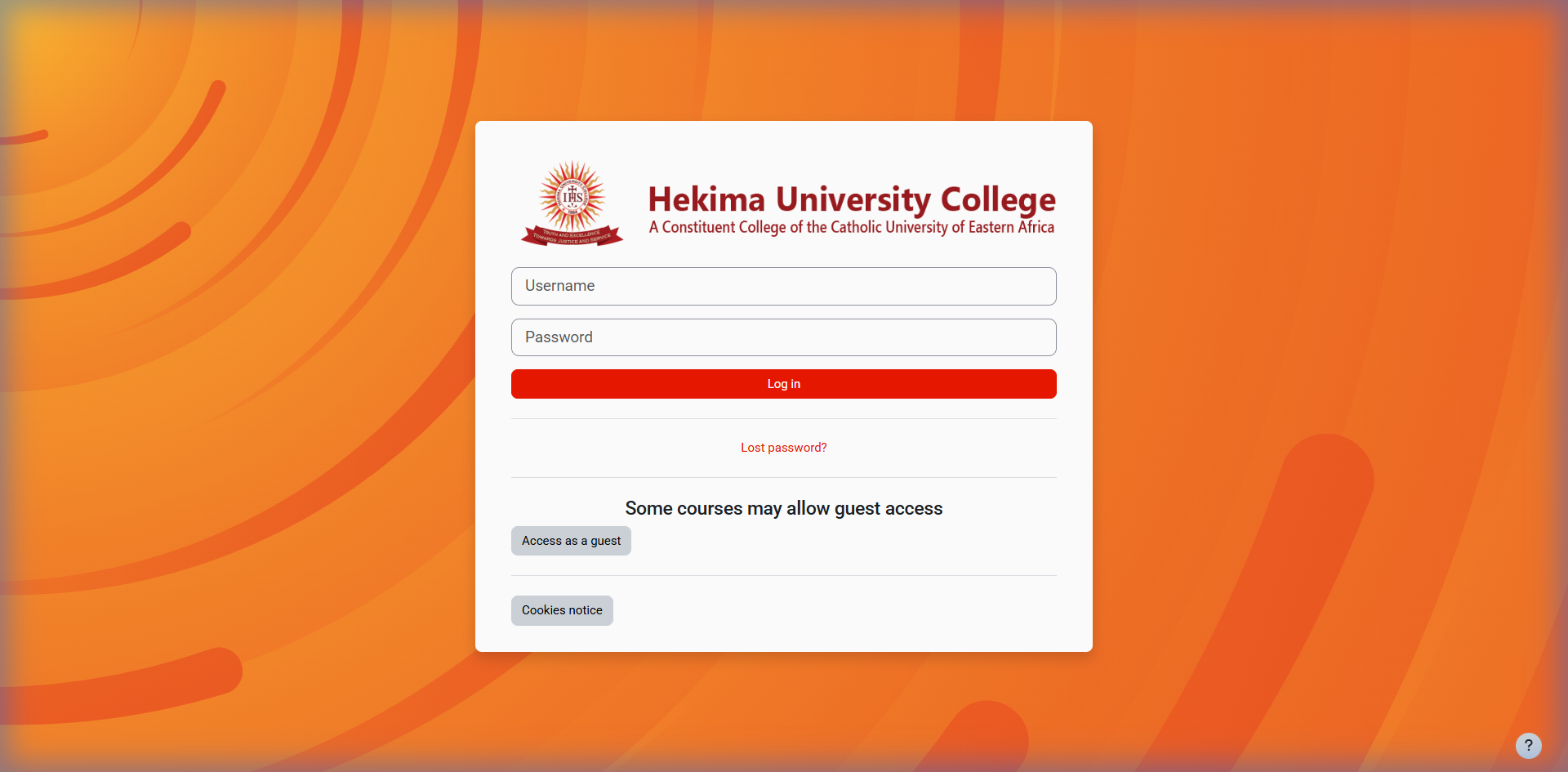
Student Login
Students should follow these steps to log in:
- Enter your student registration number as username(small letters with no slashes)
- Enter your password (provided by the university or one you created e.g., Hekima@2026)
- Click the Login button
- You will be redirected to your personalized dashboard
Security Warning: Never share your login credentials with anyone. Hekima staff will never ask for your password.
Troubleshooting Login Issues
If you experience login problems:
- Incorrect password: Use the "Forgot Password" feature
- Username not recognized: Contact ICT support
- Page not loading: Check your internet connection
- Browser issues: Try a different browser or clear cache
Note: If you're logging in for the first time and haven't received your credentials, contact the ICT or ODeL department.
Dashboard Overview
Understanding Your Dashboard
After logging in, you'll be taken to your Dashboard, which shows:
| Section | Description |
|---|---|
| Enrolled Courses | All courses you're registered for |
| Notifications | Important messages from lecturers or system |
| Upcoming Activities | Assignments, quizzes, and events with deadlines |
| Recent Activity | Your recent actions on the platform |
| Calendar | Schedule of academic events and deadlines |
Main Navigation Sections
The portal includes these main navigation areas:
- Dashboard – Your personalized homepage
- Site Home – General overview of courses and announcements
- My Courses – Shows all your enrolled subjects
- Calendar – Upcoming deadlines, classes, or exams
- Messages – Private communication from lecturers or admins
- Preferences – Customize your portal experience
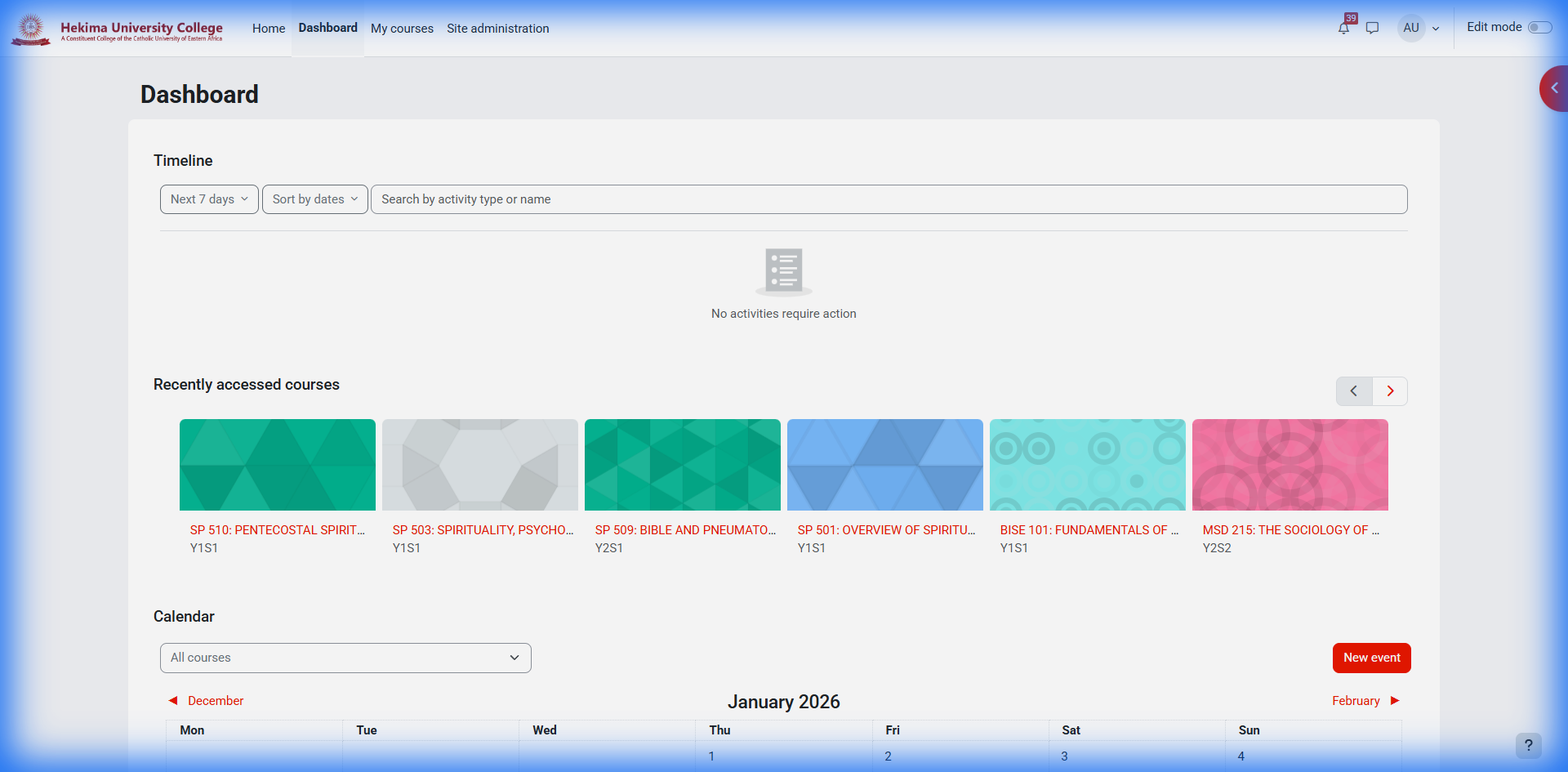
Course Navigation
Accessing Your Courses
To access your enrolled courses:
- From your dashboard, click on "My Courses" in the main navigation
- You will see a list of all courses you're enrolled in for the current semester
- Click on any course title to enter the course page
- Alternatively, you can access recently visited courses from the dashboard quick links
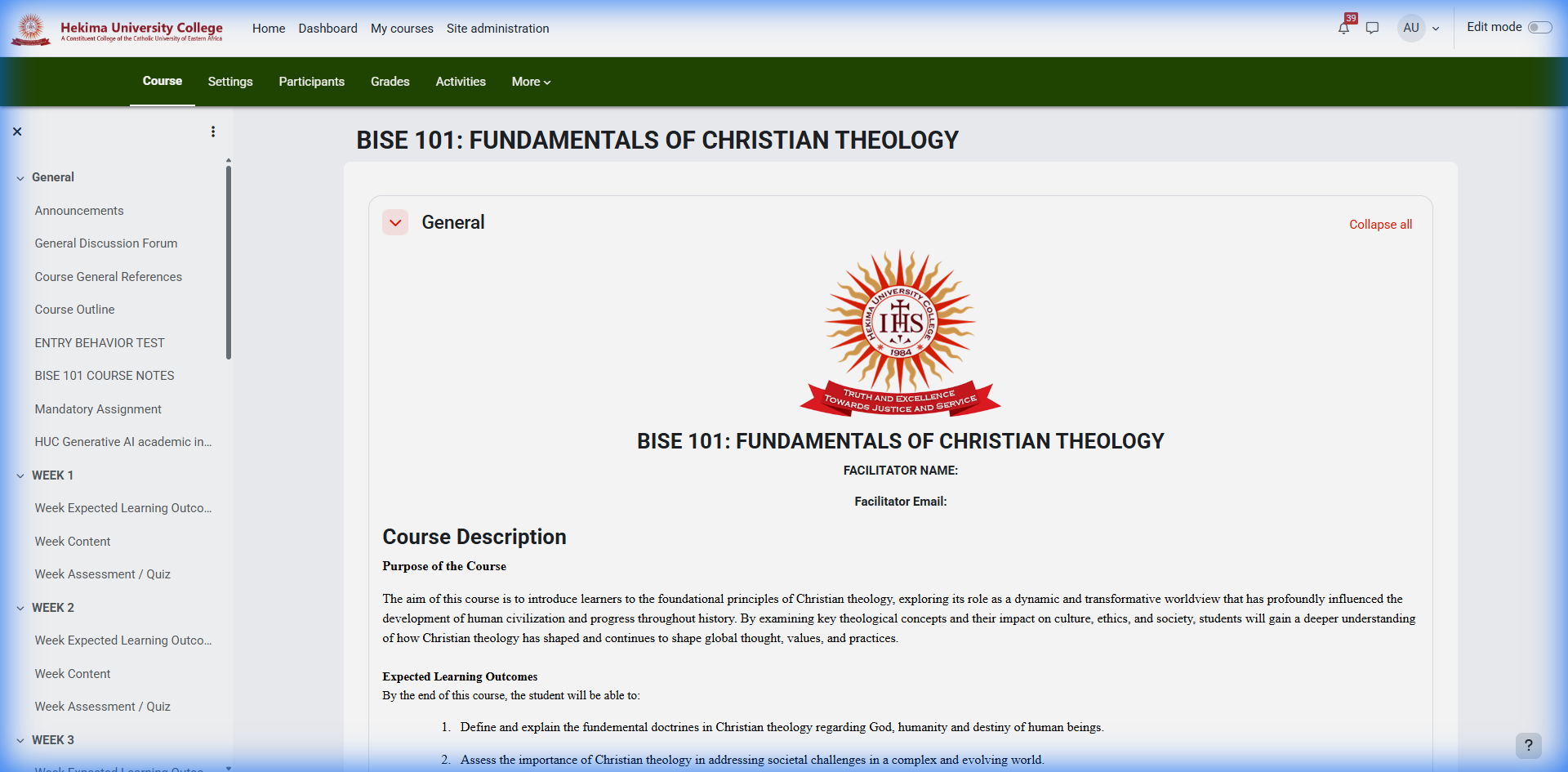
Course Layout and Structure
Each course is organized into sections that typically include:
| Section | Description |
|---|---|
| Announcements | Important updates from your instructor |
| Course Materials | Lectures, readings, and resources |
| Assignments | Tasks to complete and submit |
| Quizzes/Exams | Tests and assessments |
| Discussion Forums | Class discussions and Q&A |
| Grades | Your performance in the course |
Tip: Most courses follow a weekly structure. Check the course outline to understand how your specific course is organized.
Navigating Within a Course
Once inside a course, you can navigate using:
- Course Navigation Menu: Located on the left side of the course page
- Breadcrumb Trail: Shows your location within the course at the top of the page
- Next/Previous Buttons: Move between course sections sequentially
- Course Index/Outline: Provides an overview of all course components
Warning: Always use the platform's navigation tools rather than your browser's back button to avoid losing progress or submitted work.
Accessing Materials
Finding Course Materials
To access learning materials in your course:
- Navigate to your course homepage
- Look for sections labeled "Materials", "Resources", "Readings", or "Weekly Content"
- Click on the relevant week/module to expand it
- Click on any resource to access it
Note: Materials may be organized by week, topic, or module depending on how your instructor has structured the course.
Types of Materials and How to Access Them
The portal supports various types of learning materials:
| Material Type | How to Access |
|---|---|
| PDF Documents | Click to view in browser or right-click to download |
| PowerPoint Presentations | View online or download to your device |
| Video Lectures | Play directly in the browser media player |
| Audio Files | Play using the built-in audio player |
| Web Links | Click to open external resources in a new tab |
| SCORM Packages | Interactive content that opens in a new window |
Compatibility: Ensure you have appropriate software installed (PDF reader, media player, etc.) to access all materials. Some content may require specific browser plugins.
Downloading and Organizing Materials
To download and manage course materials:
- Right-click on the resource and select "Save link as" to download
- Some materials may have a download button or icon next to them
- Create a folder structure on your computer organized by course and week
- Keep backups of important materials on cloud storage or external drives
Tip: Download materials when you have a stable internet connection to avoid incomplete downloads, especially for large files.
Submitting Assignments
Finding and Understanding Assignments
To locate your course assignments:
- Navigate to your course page
- Look for the "Assignments" section in the course navigation
- Review all assignments and their due dates
- Click on an assignment to view detailed instructions, rubrics, and submission requirements
Important: Carefully read all instructions, formatting requirements, and submission guidelines before starting your assignment. Late submissions may be penalized or not accepted.
Submission Process
To submit an assignment:
- Click on the assignment you want to submit
- Click the "Submit Assignment" button
- Choose your submission method:
- File Upload: Select files from your device
- Online Text: Type or paste your response directly
- Media Recording: Record audio or video directly
- Add any comments for your instructor (if needed)
- Click "Submit" to finalize your submission
Note: Some assignments may allow multiple attempts, while others allow only one submission. Check the assignment details carefully.
After Submission
Once you've submitted an assignment:
- You will receive a confirmation email with submission details
- You can view your submission on the assignment page
- Some assignments may show submission status (submitted, graded, etc.)
- For group assignments, ensure all group members understand their roles
Best Practice: Keep copies of all submitted work and submission confirmations until you receive your final grade for the course.
Taking Quizzes & Exams
Preparation Before a Quiz/Exam
Before attempting any assessment:
- Check the quiz/exam schedule and time limits
- Ensure you have a stable internet connection
- Close unnecessary browser tabs and applications
- Have any permitted materials ready (calculator, notes, etc.)
- Test your computer's functionality (keyboard, mouse, etc.)
Important: Some quizzes may have restricted access times. Note the open and close dates to avoid missing assessments.
Taking the Quiz/Exam
During the assessment:
- Navigate to the quiz/exam from your course page
- Read all instructions carefully before beginning
- Note the time limit and question navigation
- Answer questions according to the specified format:
- Multiple choice: Select one or more correct answers
- True/False: Choose the correct statement
- Essay: Type your response in the provided box
- Matching: Drag and drop or select corresponding pairs
- Save your answers periodically if the option is available
- Submit your quiz when completed
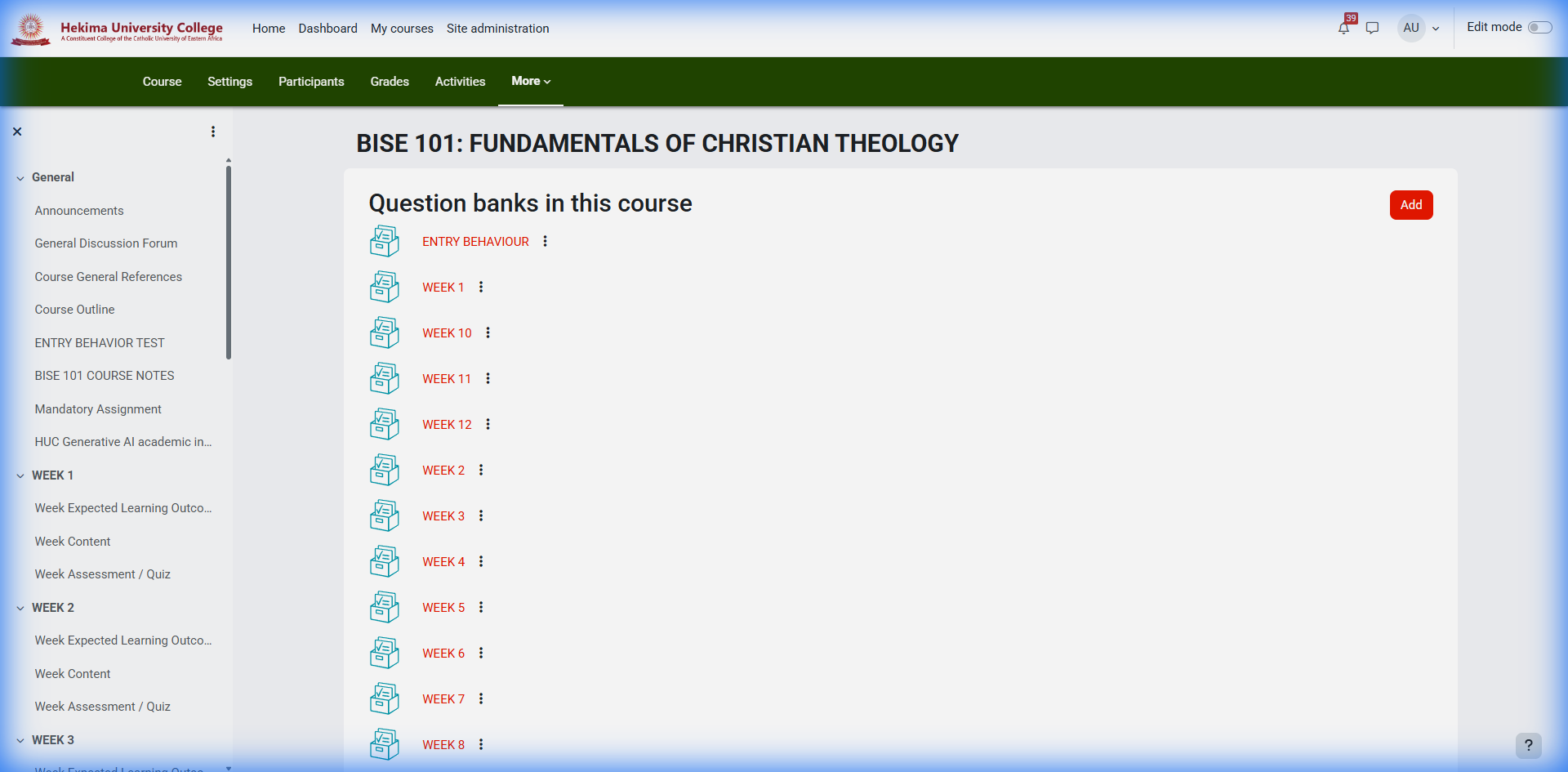
Technical Issues and Special Considerations
If you encounter problems:
- Don't refresh the page during a quiz unless absolutely necessary
- If you lose connection, try to reconnect immediately
- Contact your instructor immediately if you experience technical difficulties
- For timed exams, the timer may continue running even if you lose connection
Forums & Messaging
Using Discussion Forums
To participate in course discussions:
- Navigate to the "Forums" or "Discussions" section in your course
- Browse through available discussion topics
- Click on a topic to view existing posts
- To contribute:
- Click "Reply" to respond to an existing post
- Click "Start New Thread" to create a new discussion
- Use the formatting toolbar to format your post
- Attach files if necessary
- Submit your post
Note: Some forums may be graded or required for course participation. Check your course requirements.
Private Messaging
To send private messages:
- Click on the "Messages" icon in the top navigation bar
- Click "Compose New Message"
- Select recipients from your course participants
- Type your message and add attachments if needed
- Click "Send"
Etiquette: Use appropriate language and tone in all communications. Remember that academic communication should remain professional, even in informal settings.
Notification Settings
To manage your forum and message notifications:
- Click on your profile picture and select "Preferences"
- Go to the "Notification Preferences" section
- Choose how you want to be notified about:
- New forum posts
- Replies to your posts
- Private messages
- Announcements
- Select between email, portal notifications, or both
- Save your preferences
Tip: Enable notifications for important course discussions to stay engaged with your class community and not miss important updates.
Password Reset
Self-Service Password Reset
If you've forgotten your password:
- Go to the Hekima E-learning portal login page
- Click on the "Forgot Password" link
- Enter your registered email address or student ID
- Check your email for a password reset link
- Click the link in the email (it will expire after a limited time)
- Create a new strong password following the requirements:
- Minimum 8 characters
- At least one uppercase letter
- At least one number
- At least one special character
- Confirm your new password and save the changes
Note: If you don't receive the password reset email within 15 minutes, check your spam folder or try resending it.
Contacting Support for Password Issues
If self-service reset doesn't work:
- Contact the Hekima IT Help Desk during business hours
- Have your student ID number ready for verification
- Be prepared to answer security questions to verify your identity
- Visit the IT office in person if required, bringing your student ID card
Security: Never share your password with anyone, including university staff. IT support will never ask for your password.
Password Best Practices
To maintain account security:
- Use a unique password for your Hekima account
- Change your password periodically (every 3-6 months)
- Don't use easily guessable information (names, birthdays, etc.)
- Consider using a password manager to securely store your passwords
- Enable two-factor authentication if available
- Always log out after using shared computers
Getting Help
Technical Support Resources
For technical issues with the e-learning portal:
- IT Help Desk:
- Email: elearning@hekima.ac.ke
- Phone: +254 (0) 20 201 2715
- Location: [Campus Building, Room Number]
- Hours: [Days and Hours of Operation]
- Online Knowledge Base: Search for solutions in the help documentation
- Service Portal: Submit and track support tickets online
- Live Chat: Available during business hours on the portal
Note: When contacting support, provide specific details about your issue, including error messages, what you were trying to do, and the browser/device you're using.
Academic Support
For course-related questions:
- Course Instructor: First point of contact for course content questions
- Teaching Assistants: Can help with specific course questions
- Department Office: For program-related inquiries
- Academic Advising: For guidance on course selection and requirements
- Library Services: For research assistance and resources
Important: Contact your instructor early if you're having difficulties with course material. Don't wait until right before exams or assignment deadlines.
Common Issues and Solutions
Quick fixes for frequent problems:
| Issue | Possible Solution |
|---|---|
| Can't log in | Reset password, check caps lock, try different browser |
| Course content not loading | Clear browser cache, check internet connection |
| Unable to submit assignment | Check file format/size, try different browser |
| Video/audio not playing | Update browser, check plugins, try different device |
| Missing course | Contact instructor or department administrator |
Tip: Before contacting support, try these basic troubleshooting steps: refresh the page, clear your browser cache, try a different browser, or restart your computer.
Best Practices
Time Management Strategies
To succeed in online learning:
- Create a schedule: Set specific times for studying each course
- Check the portal regularly: Aim for at least once daily
- Start early: Begin assignments well before due dates
- Use a calendar: Record all important dates and deadlines
- Break tasks into chunks: Tackle large assignments in smaller pieces
- Minimize distractions: Find a quiet study space and limit interruptions
Note: Online learning requires more self-discipline than traditional classes. Developing strong time management habits is crucial for success.
Technical Preparation
Ensure smooth learning experience:
- Backup your work: Save important files in multiple locations
- Keep software updated: Browser, plugins, and operating system
- Have a backup plan: Alternative internet access options
- Test technology early: Verify everything works before deadlines
- Bookmark important pages: Portal login, course pages, support
- Use supported browsers: Chrome or Firefox work best with the portal
Important: Technical issues are generally not accepted as excuses for missed deadlines. Plan for potential problems by submitting work early when possible.
Effective Online Learning Strategies
Maximize your learning experience:
| Strategy | Implementation |
|---|---|
| Active Participation | Engage in discussions, ask questions, contribute regularly |
| Note-Taking | Take notes during video lectures as you would in class |
| Regular Review | Revisit materials periodically instead of cramming |
| Self-Testing | Use practice quizzes to check understanding |
| Peer Interaction | Form study groups with classmates |
| Seek Clarification | Ask questions when concepts are unclear |
Success Tip: Treat online courses with the same seriousness as in-person classes. Dedicate adequate time and create a structured learning environment to achieve your academic goals.